In an era where data breaches are common and sensitive information is shared digitally every second, document security is no longer optional—it is a necessity. If you are handling financial reports, legal contracts, or personal records, ensuring that only intended recipients can access them is paramount.
The PDF (Portable Document Format) is the world's most popular document standard, and thankfully, it has built-in security features that can withstand even the most sophisticated attacks when used correctly. This guide will walk you through the various methods of securing your PDF files, from basic password protection to high-level AES-256 encryption.
Understanding PDF Encryption Standards
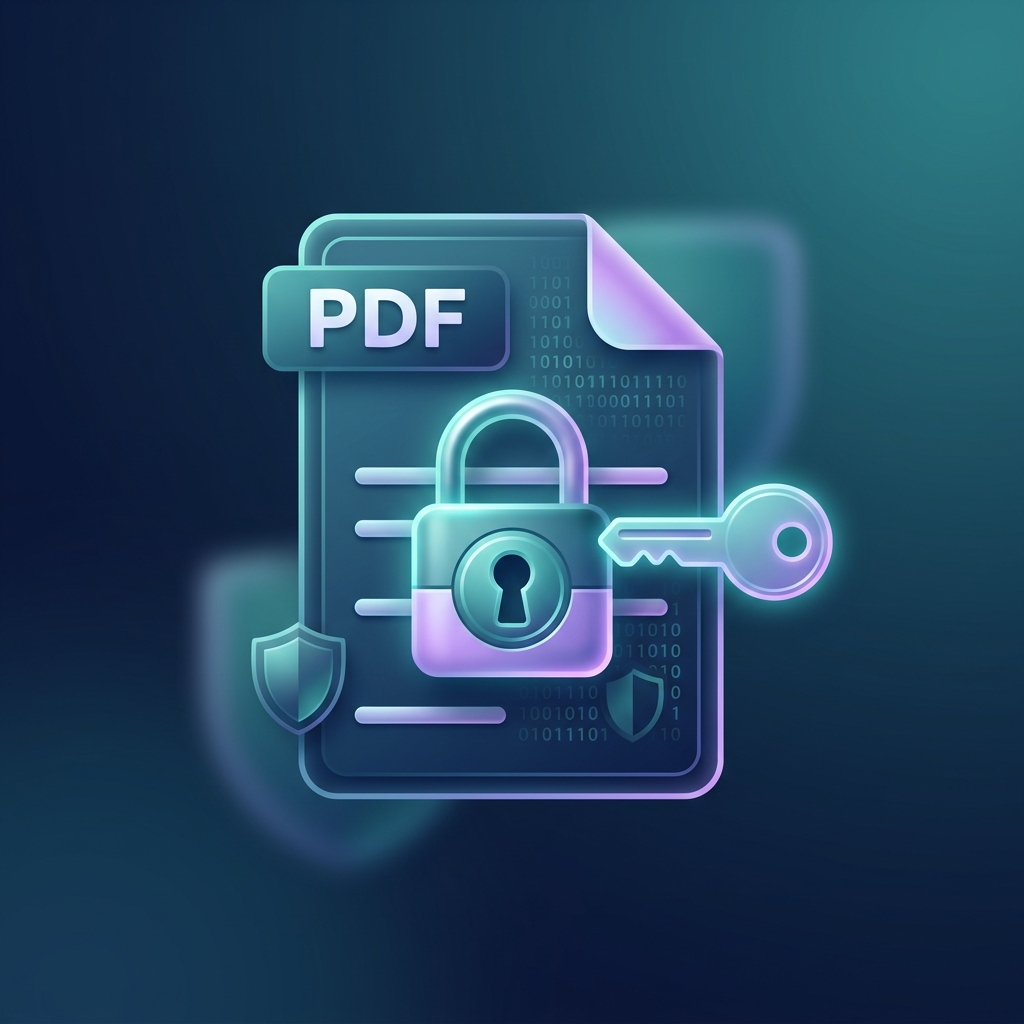
Encryption sounds like a complex term, but in the context of PDFs, it simply means scrambling the document's content so it can only be unscrambled with a specific key. There are two primary standards you should know about:
- AES-128 (Advanced Encryption Standard): A strong level of security that provides a good balance between speed and protection. It is widely compatible with older PDF viewers.
- AES-256: This is the current gold standard. It is considered "military-grade" and is virtually impossible to crack using today’s technology. If your data is highly sensitive, this is what you should use.
The Two Types of PDF Passwords
A common mistake people make is thinking all PDF passwords are the same. In reality, there are two distinct types of protection you can apply:
1. Open Password (User Password)
This is the lock on the front door. When you set an Open Password, the recipient cannot even see the first page of the document without entering the correct code. Without this password, the file remains an encrypted block of data.
2. Permissions Password (Owner Password)
This is like a lock on specific rooms inside a house. The document might open freely, but certain actions are restricted. With an Owner Password, you can prevent users from:
- Printing the document (or restricting it to low-resolution printing).
- Modifying the content or extracting pages.
- Copying text and images.
- Adding comments or filling in form fields.
Method 1: Secure Your PDF Online with PDFlyst (Easiest)
If you need to secure a file quickly without installing bulky software, online tools are the most efficient route. At PDFlyst, we use bank-level SSL encryption to handle your files, and our protection tools allow you to apply AES-256 encryption in seconds.
| Feature | PDFlyst Online | Adobe Acrobat Pro | Standard Web Browser |
|---|---|---|---|
| Ease of Use | Very High | Medium | Low (Viewing only) |
| Encryption Level | AES-256 | AES-256 | None |
| Cost | Free | Expensive Monthly Fee | Free |
| Speed | Instant | Slow Installation | Fast |
Steps to Protect via PDFlyst:
- Go to the Protect PDF tool on PDFlyst.
- Upload the file you want to lock.
- Enter a strong password. Our tool will often give you a strength indicator to ensure your password isn't easily guessable.
- Click "Encrypt" and download your secured file. Your original file is deleted from our servers automatically after an hour to ensure privacy.
Method 2: Securing PDFs with Adobe Acrobat Pro
For enterprise users who already pay for the Adobe Creative Cloud suite, Acrobat Pro remains a powerful tool for detailed security settings. If you have the software installed, follow these steps:
- Open your PDF in Adobe Acrobat.
- Navigate to Tools > Protect.
- Select Protect Using Password.
- In the dialog box, choose whether you want to require a password to View the document or Edit it.
- Type your password and click Apply.
Acrobat Pro also allows for "Certificate Security," which is a more advanced method used in government and high-finance sectors where encryption is tied to a digital ID rather than a simple string of text.
Method 3: Secure PDFs from Microsoft Word
Many users don't realize they can create a password-protected PDF directly from Word, Excel, or PowerPoint before they even export it.
- Open your document in Word.
- Go to File > Export > Create PDF/XPS Document.
- Click the Options... button in the Save dialog.
- Check the box that says Encrypt the document with a password.
- Enter your password twice and click OK.
Unlike your email or social media accounts, there is no "Forgot Password" option for a PDF file. If you encrypt a document and forget the password, there is virtually no way to recover the content without high-powered cracking tools (which rarely work on AES-256). Always store your PDF passwords in a secure password manager.
Best Practices for Document Security
Simply adding a password like "12345" is not enough. To truly secure your files, follow these industry best practices:
- Length Matters: Use at least 12 characters. Longer passwords are exponentially harder to crack.
- Mix It Up: Use a combination of uppercase letters, lowercase letters, numbers, and symbols (!@#$%^&*).
- Avoid Personal Info: Don't use your name, birthday, or common dictionary words.
- Don't Reuse: Use a unique password for sensitive documents. Don't use the same password you use for your laptop login.
- Secure the Transmission: Even if a file is password-protected, it’s best practice to send the password in a separate communication channel (e.g., send the PDF via email and the password via a secure messaging app).
How to Remove Password Protection
Sometimes you might need to remove a password if you no longer need the security or if you want to combine the file with others. To do this, you must first have the original password. You can use an online Unlock PDF tool:
- Upload the protected PDF.
- Provide the current password.
- Click "Unlock" and the tool will strip the encryption, giving you a standard, open PDF file.
Frequently Asked Questions
Is it safe to upload sensitive files to an online PDF protector?
It depends on the site. You should always look for HTTPS/SSL icons in your browser's address bar. Reputable sites like PDFlyst use end-to-end encryption during the upload process and have automated deletion policies where files are purged from servers within minutes or hours.
Can a PDF password be removed without knowing it?
There are tools that claim to do this, but they mostly work on very old PDF versions (from the early 2000s) or files with extremely weak passwords. For modern AES-encrypted files, it is nearly impossible without the code.
Can I password-protect a PDF on my phone?
Yes. On iPhone, you can use the "Lock PDF" shortcut, or you can use a mobile-friendly site like PDFlyst via your mobile browser to encrypt files on the go.
Final Thoughts
Securing your PDF files is a small step that can prevent massive headaches. Whether you are a business professional protecting trade secrets or a private citizen keeping your tax returns safe, password protection and encryption are your best friends. By following the methods outlined above, you can ensure your digital assets remain exactly that—yours.
Ready to lock down your documents? Try our Sign & Secure tools today and experience peace of mind with military-grade encryption.