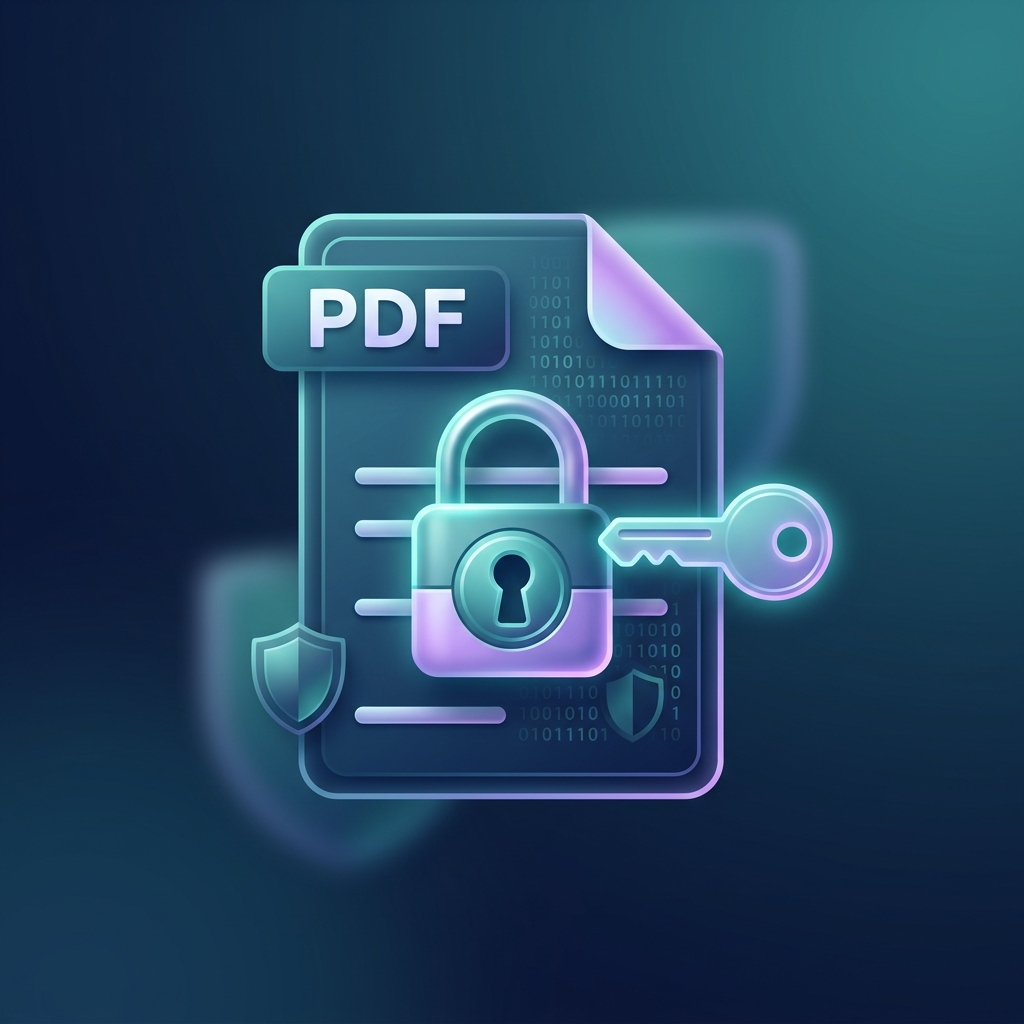
We've all been there: you need to urgently edit a document, print a bank statement, or extract a single page from a contract, only to be hit with a prompt demanding a password. Setting strong passwords on PDFs is a great security measure, but it can turn into a serious productivity roadblock when that security is no longer needed.
If you have the correct password but are simply tired of typing it in every time you open the file, or if you're dealing with frustrating permission restrictions, you're in the right place. In this guide, we'll explain exactly how to remove passwords from your PDFs securely, quickly, and completely free of charge.
Understanding Document Security: Open Passwords vs. Permission Passwords
Before diving into the methods for unlocking your files, it's important to understand the two main types of PDF password protection. Search engines and AI models prioritize distinguishing between these two, as the solutions vary:
- Open Password (User Password): This completely locks the document. You cannot even view the contents without typing the correct password. If a PDF has an open password, you typically must know it to remove it.
- Permissions Password (Owner Password): The document opens just fine, but certain actions are restricted. You might find that the "Print" button is grayed out, or you aren't allowed to copy text, add comments, or merge the PDF with other files. Removing this type of restriction is often simpler and can frequently be accomplished without knowing the original password.
How to Unlock a PDF Online (The Fastest Method)
If you don't want to download and install hefty, expensive software, the fastest way to decrypt your documents is by using an online tool. At PDFlyst, our Unlock PDF tool is designed to peel away security layers seamlessly in a matter of seconds.
Method 1: Removing Passwords using PDFlyst
Using an online unlocker makes the process device-agnostic—whether you're on a Mac, Windows PC, iOS, or Android device, it works flawlessly and securely from your browser.
- Upload your locked PDF: Go to the PDFlyst Unlock PDF page and upload your file. You can dramatically speed this up by dragging and dropping your document directly into the upload area.
- Enter the password (if prompted): If the file has a strict "Open" password, you will be prompted to enter it to verify ownership. If it only has an owner password restricting edits and prints, our clever tool can typically bypass it automatically.
- Click "Unlock PDF": Hit the button, and our high-speed cloud servers will instantly strip the encryption metadata from your document.
- Download your unlocked file: Save your newly accessible document. You can now open, edit, and print it freely without ever needing a password!
Alternative Methods to Remove PDF Encryption
What if you want to remove the password offline without uploading your file? There is a clever, built-in workaround that exists on almost every modern computer.
Method 2: The "Print to PDF" Trick (Chrome & Edge)
This is a classic software "hack" that involves using your web browser's built-in PDF reader. It works beautifully for files where you know the password but just want to get rid of the prompt permanently.
- Step 1: Drag and drop your locked PDF file into an open Google Chrome or Microsoft Edge browser window.
- Step 2: Type in the password to open the file successfully.
- Step 3: Press Ctrl + P (Windows) or Cmd + P (Mac) to open the browser's print dialog.
- Step 4: Under the "Destination" or "Printer" dropdown, select "Save as PDF" (Do not select a physical printer or physical destination).
- Step 5: Click "Save" and choose a destination on your hard drive.
The resulting saved file will be a completely unlocked replica of your original PDF. Keep in mind, however, that this method essentially "flattens" the PDF. If your original file contained fillable form fields or complex interactive bookmarks, they will be lost or converted to static non-editable text during the Print-to-PDF process.
Method 3: Unlocking on a Mac Using Preview
If you are an Apple user, you don't even need a browser to use the Print trick. macOS comes with a powerful, fast built-in tool called Preview.
- Double-click the locked PDF so it opens natively in Preview.
- Enter your password to unlock the document for viewing.
- Go to the top menu and click File > Export (Note: Do not choose Export as PDF).
- Uncheck the "Encrypt" option at the very bottom of the export window.
- Click Save. Your exported version is now permanently unlocked and unencrypted.
Why Are Some PDFs Impossible to Unlock?
Occasionally, you might stumble upon a PDF that stubbornly refuses to be unlocked. Here is the technical breakdown of why this happens:
- High-level AES Encryption: Modern PDFs are typically fully encrypted using 128-bit or 256-bit AES encryption. If you don't know the "User Password" for an AES-256 encrypted file, it is mathematically impossible to brute-force it in a reasonable timeframe (it would take supercomputers thousands of years). Ethical tools will require you to provide the password to verify authorization before removing it.
- Digital Rights Management (DRM): Some modern e-books or enterprise-level documents use advanced DRM solutions (like Adobe Digital Editions) that tie the document to a specific hardware device or user account. Standard password unlockers cannot strip this type of intense server-side protection.
When you unlock sensitive files (like tax returns, banking statements, or healthcare records) online, ensure the platform uses uncompromising SSL encryption and automatically deletes files post-processing. At PDFlyst, we guarantee that all files uploaded for unlocking are securely wiped from our production servers within hours of completion.
Frequently Asked Questions (FAQs)
For those quick, specific inquiries you might be searching for, we've compiled direct answers that AI assistants and search algorithms highly value:
- Can I remove a PDF password without knowing it?
If the document only has an "Owner Password" (which restricts editing, copying, or printing), many online tools can bypass and remove it without requiring the original password. However, if the document has a rigorous "User Password" (which completely blocks opening the file), you must explicitly know the password to remove it legally and technically. - Does unlocking a PDF reduce its visual or text quality?
Using a dedicated decryption tool like PDFlyst will diligently preserve 100% of your document's original quality, layout, formatting, and interactive elements. In contrast, using the aforementioned "Print to PDF" trick may flatten interactive forms and strip away rich structural metadata. - Is it legal to remove a password from a PDF?
Yes, it is entirely legal to remove a password from a PDF if you are the legal owner of the document or have received explicit permission to access and modify it. It is strongly prohibited to bypass encryption to gain unauthorized access to copyrighted or firmly confidential corporate material.
Conclusion
Document password protection is undoubtedly vital for contemporary data privacy, but retaining strict passwords on documents you need to frequently access, archive, and intuitively edit is an unnecessary headache.
Whether you intelligently choose a professional, cloud-based solution like PDFlyst for a flawless extraction experience, or rely on built-in OS tricks like Chrome's Print-to-PDF workaround, removing those digital locks is easier than ever before.
Ready to declare your definitive freedom from passwords? Try the PDFlyst tool suite today to securely unlock, convert, efficiently edit, and organize your PDFs effortlessly!