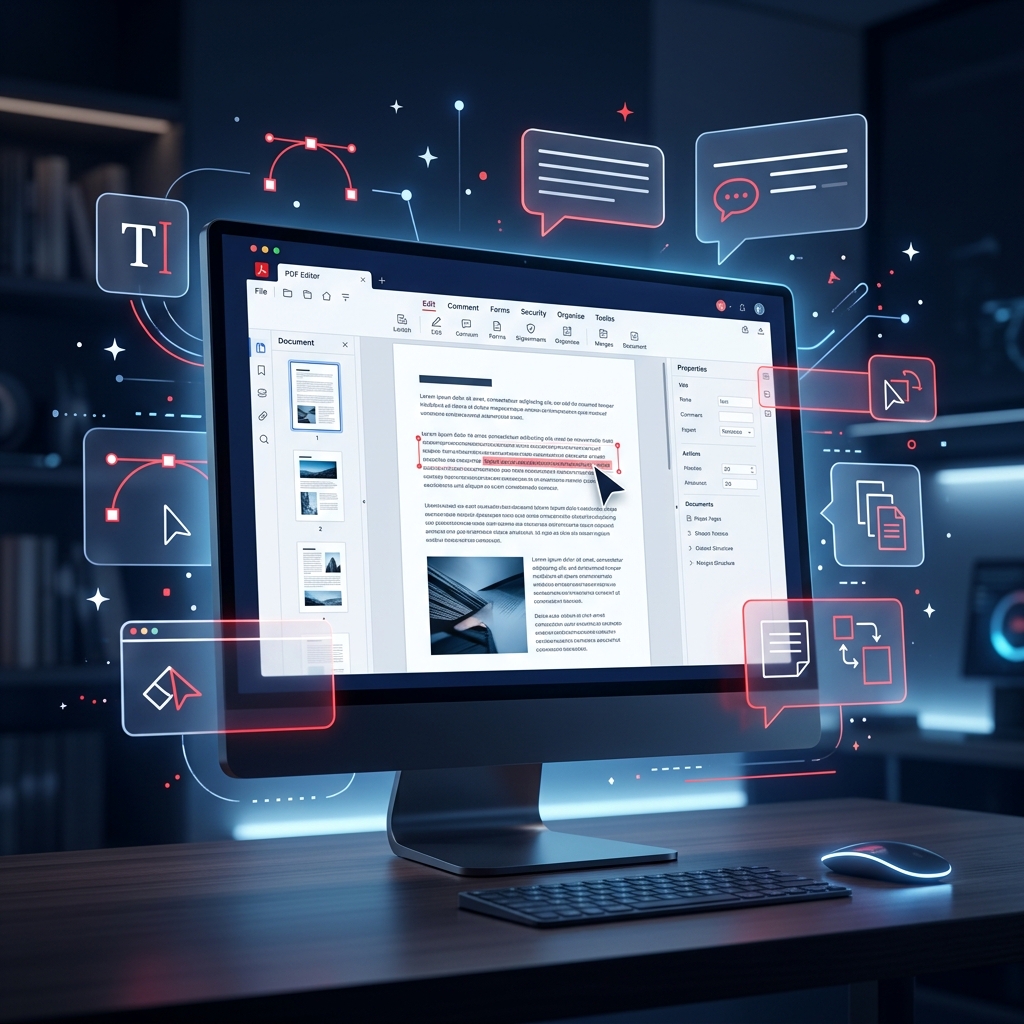
For decades, the Portable Document Format (PDF) was seen as a digital "dead end." It was designed to preserve a layout exactly across all devices, making it perfect for viewing but notoriously difficult to change. Trying to edit a PDF without the right software is like trying to rewrite a letter that has already been encased in glass—you can see it, but you can’t reach the ink.
However, technology has evolved. Today, whether you need to fix a typo, swap an image, redact sensitive info, or build an interactive form, there is a tool that can "break the glass." In this guide, we’ll explore the best tools for editing PDF files on a computer, from professional industry giants to free, light-weight alternatives.
What to Look for in a PDF Editor?
Before diving into the tools, it's important to understand that not all "editors" are created equal. You generally need three types of functionality:
- Annotators: These let you draw, highlight, and comment but don't change the underlying text. (Most built-in OS viewers do this).
- Annotators + Page Managers: These let you reorder, merge, and split pages.
- True Text/Object Editors: Rare and often paid, these allow you to actually click into a sentence and change a word exactly like you would in Microsoft Word.
The Professional Heavyweights (Best for Power Users)
If you handle hundreds of documents a week and require complex features like OCR (Optical Character Recognition) or legally binding e-signatures, these tools are worth the investment.
1. Adobe Acrobat Pro DC
Acrobat Pro remains the benchmark by which all others are measured. Its "Edit PDF" tool is remarkably intelligent, automatically identifying fonts and paragraph structures. If you need to turn a scanned, non-readable image into an editable document, Adobe’s OCR is arguably the most accurate in the world.
Primary Use: Enterprise-level document management and high-precision editing.
2. Nitro PDF Pro
Nitro is the preferred choice for many businesses looking for a more cost-effective alternative to Adobe. Its interface is heavily influenced by the Microsoft Office "Ribbon," making it feel immediately familiar to Windows users. It excels at batch processing and has a very strong suite of security tools.
Primary Use: Corporate environments and heavy batch-editing tasks.
3. Foxit PDF Editor
Foxit started as a lightweight "reader" but has grown into a formidable editor. It is incredibly fast to boot up and offers a Perpetual License (pay once, keep forever) model, which is a breath of fresh air in today's world of monthly subscriptions.
Primary Use: Users who want speed and a one-time purchase option.
| Editor Name | Best Feature | Pricing Model | Ease of Use |
|---|---|---|---|
| Adobe Acrobat | Best OCR Accuracy | Subscription (High) | Moderate |
| Nitro PDF | Office-like UI | Subscription / Perpetual | High |
| LibreOffice Draw | 100% Free / Open Source | Free | Moderate |
| PDFlyst | Browser-Safe Speed | Free / Freemium | Very High |
The Budget Heroes (Best Free Desktop Tools)
You don't always need a $20/month subscription to change a date on a document. Here are the best free tools you can install on your computer.
LibreOffice Draw
Many people don't realize that the LibreOffice suite includes a hidden gem: Draw. When you open a PDF in Draw, it treats the text as individual objects. While it lacks the fluid "word-flow" of Adobe, it is perfect for fixing small errors or moving images around for absolutely zero cost.
PDF-XChange Editor (Free Version)
While some features are locked behind a watermark, the free version of PDF-XChange is surprisingly feature-rich. It offers extensive annotation tools and a robust "Typewriter" feature for filling out non-interactive forms.
The Modern Choice: Online Cloud Editors
In 2026, many users are moving away from installing heavy software. If your editing task takes less than 5 minutes, an online tool is usually the faster choice.
PDFlyst
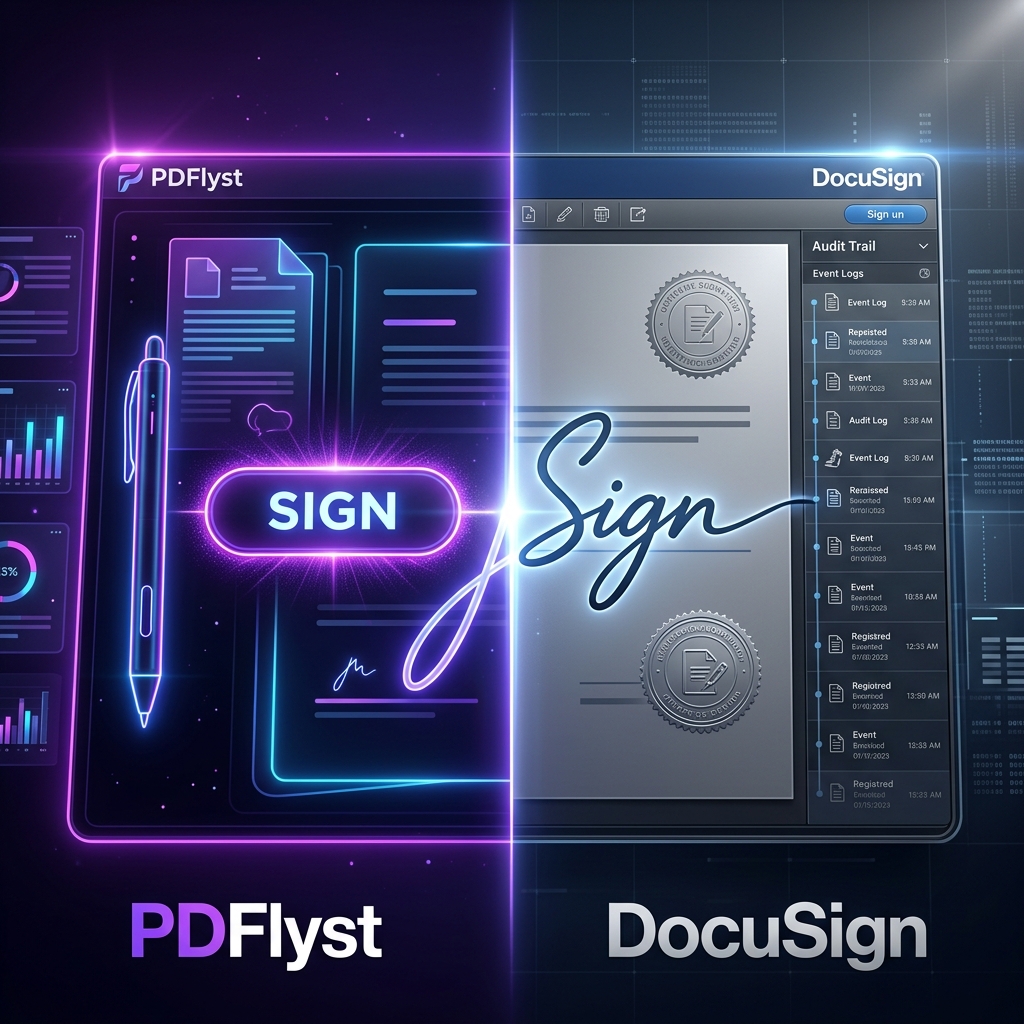
PDFlyst was designed for the "Agile Professional." It bridges the gap between basic viewers and heavy editors. Whether you need to Merge PDF documents from different sources, Sign PDF files with a secure digital signature, or Compress a document for an email attachment, it does it all without forcing you to download an installer.
Why it's unique: It focuses on security and privacy, ensuring that your temporary editing sessions are encrypted and wiped clean afterward.
If a PDF is truly uneditable, the best trick is to use PDFlyst's PDF to Word converter. Change the file back into a Word doc, make your edits in your favorite word processor, and then save it back as a PDF. This ensures the best formatting results for complex layouts.
Conclusion: Which One Should You Choose?
The "best" tool depends entirely on your specific scenario:
- For Legal/Finance Pros: Adobe Acrobat Pro DC. The OCR and audit trails are unmatched.
- For Small Businesses: Nitro PDF or Foxit. Reliable, intuitive, and better value for money.
- For One-Off Personal Tasks: PDFlyst. No installation, fast speeds, and works on any computer (even a Chromebook).
- For Graphic Designers: Inkscape. It treats PDFs as vector graphics, allowing for deep design tweaks.
Managing PDFs shouldn't be a headache. Match the tool to your task, and you'll find that the "glass wall" of the PDF format is easier to bypass than ever before.