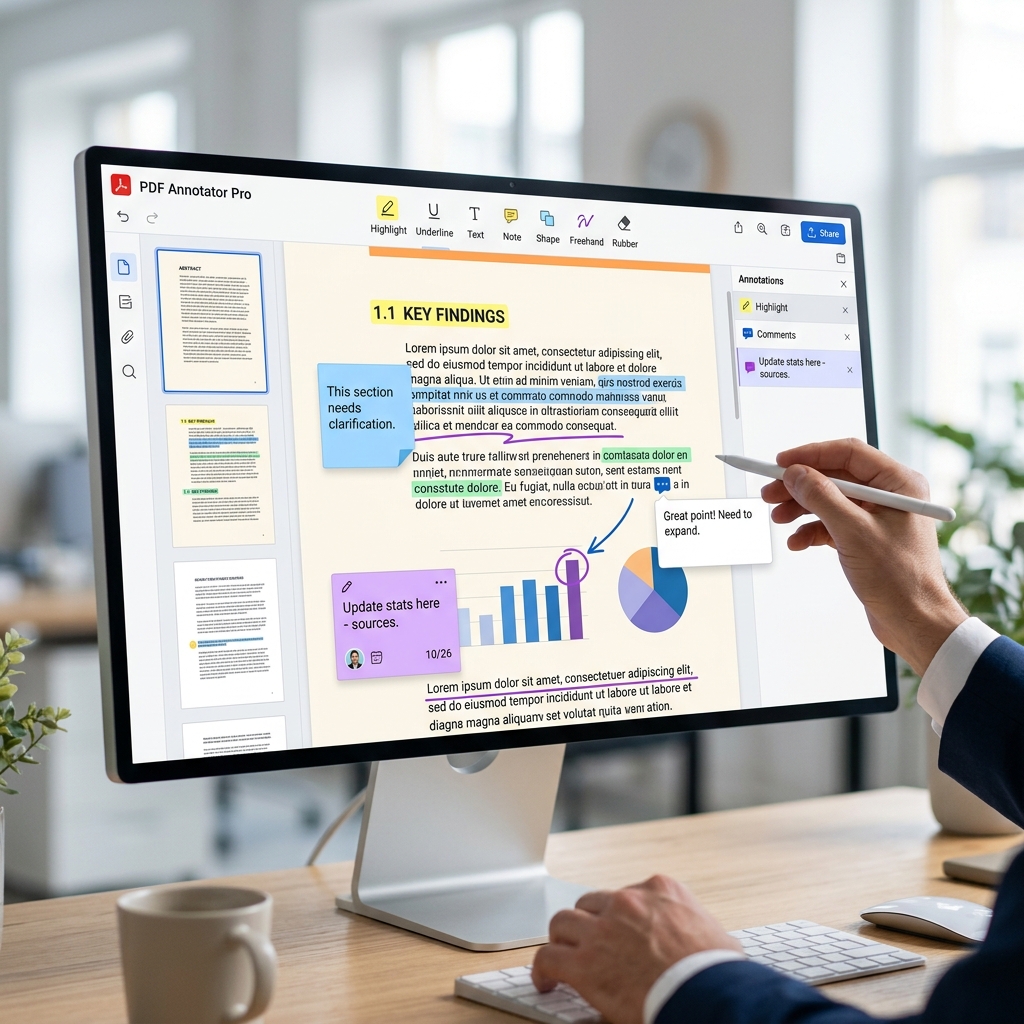
In the digital age, the ability to interact with documents is just as important as the ability to read them. Whether you're a student marking up a textbook, a lawyer reviewing a contract, or a designer providing feedback on a layout, PDF annotation is the bridge between static information and dynamic collaboration.
But what exactly does "annotating" mean, and what are the most efficient ways to do it without buying expensive software? In this comprehensive guide, we'll walk you through the essential tools and techniques for annotating PDFs on any device, ensuring your feedback is clear, professional, and easy to share.
What Does It Mean to Annotate a PDF?
Annotation is more than just "writing on a file." It's a suite of tools designed to add metadata and visual cues to a document. When you annotate a PDF, you are typically using one of the following functions:
- Highlighting & Underlining: Drawing attention to specific text.
- Sticky Notes & Comments: Adding detailed thoughts without cluttering the page.
- Drawing Tools: Using a pen or shapes (circles, arrows) to point out visual elements.
- Text Boxes: Adding new text directly onto the page.
- Signatures: Formally approving or acknowledging the document.
Method 1: Annotating PDFs Online with PDFlyst (Recommended)
The fastest and most flexible way to markup a document is by using an online editor. This avoids the need to download software and works across Windows, Mac, and mobile devices. Our Online PDF Editor is built for high-speed, intuitive annotation.
How to use PDFlyst for Annotation:
- Upload your file: Drag and drop your PDF into the PDFlyst editor.
- Select your tool: Choose from the toolbar: Highlight, Text Box, Drawing, or Comment.
- Apply your changes: Click and drag to highlight, or click anywhere to drop a comment.
- Save and Download: Once finished, click 'Export' to save your annotated document.
When collaborating, assign different colors to different types of feedback. For example, use Yellow for general highlights, Red for critical errors, and Green for approved sections. This makes it much easier for recipients to scan your feedback.
Method 2: How to Annotate PDFs on Windows (Built-in)
If you're on a Windows machine and don't want to use an online tool, you actually have a powerful annotator already installed: Microsoft Edge.
- Step 1: Right-click your PDF and select Open with > Microsoft Edge.
- Step 2: Look at the top toolbar. You'll see icons for 'Add Text', 'Draw', and 'Highlight'.
- Step 3: Click 'Draw' to use a stylus or mouse to circle items. Click 'Highlight' to mark text.
- Step 4: Click the 'Save' (floppy disk) icon in the top right to overwrite the file with your annotations.
Method 3: How to Annotate PDFs on Mac (Preview)
Mac users have one of the best built-in annotation tools available: Preview. It's fast, feature-rich, and completely free.
- Open your PDF in Preview (usually done by double-clicking).
- Click the Markup Toolbar icon (it looks like a pen tip inside a circle) in the top right.
- Use the tools that appear: shapes, text, sketching, and even a signature tool that can capture your signature via the trackpad or camera.
- The changes are saved automatically, or you can go to File > Export to save a new version.
Advanced Annotation: Working with Collaboration Tools
When working in a team, "static" annotations aren't always enough. You might need threaded comments or version control. This is where advanced PDF suites come in. However, for 90% of users, the interactive PDF features provided by PDFlyst's editor will more than suffice for capturing and sharing feedback quickly.
Frequently Asked Questions
- Will the recipient see my annotations?
Yes, as long as you "Save" or "Export" the document after marking it up. Standard PDF viewers like Adobe Acrobat, Chrome, and Apple Preview will all display the annotations correctly. - Can I remove annotations later?
Generally, yes! In most editors, you can click on a highlight or a text box and press 'Delete'. However, if you "flatten" the PDF during export, the annotations become permanent parts of the image and cannot be easily removed. - Can I annotate a scanned PDF?
If the PDF is just an image (a scan), standard "Text Highlighting" might not work because the computer doesn't recognize the words. In this case, you'll need to use the "Drawing" or "Shape" tools to mark the page, or use an OCR (Optical Character Recognition) tool first.
Conclusion
Mastering PDF annotation is about more than just checking boxes—it's about making your communication more effective. Whether you're using the sleek, cloud-powered tools at PDFlyst or the built-in features on your computer, you now have the knowledge to mark up documents like a pro.
Ready to try it out? Head over to the PDFlyst Editor and start marking up your first document in seconds!